
OCR PDF Converter
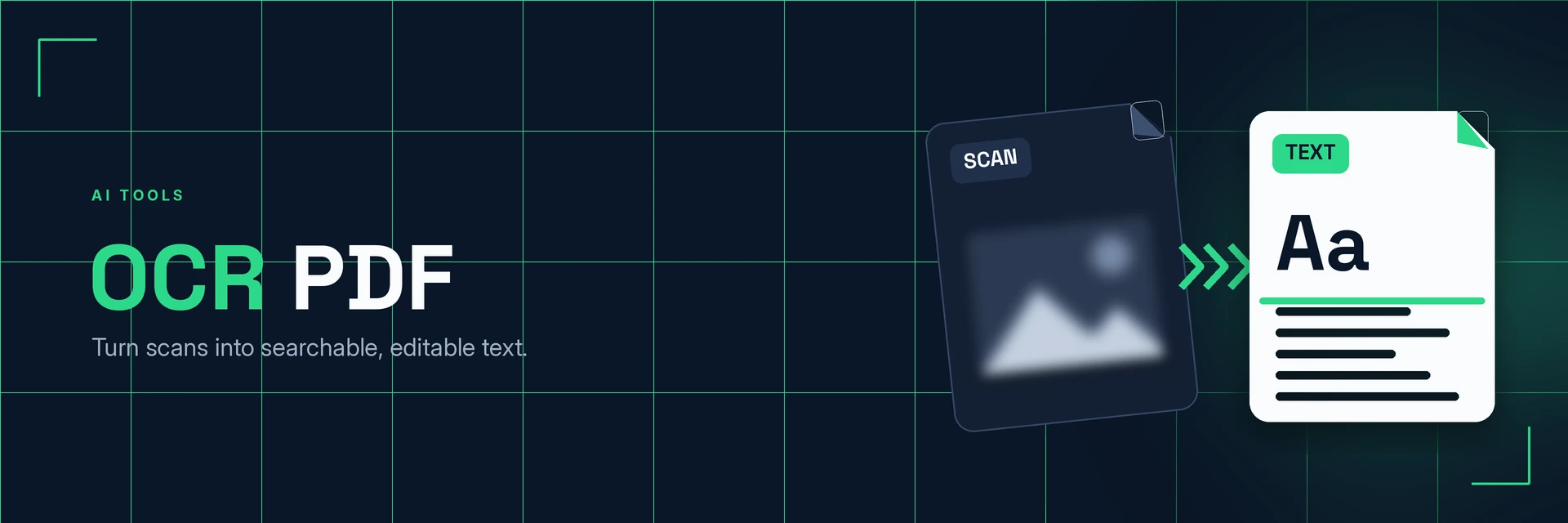
King Docs uses OCR (optical character recognition) to turn scanned PDFs into searchable, selectable text, so you can find, copy and edit words that were locked in an image. It works in your browser with no software to install. It's free to start, with paid plans for more.
- Free to start
- No software to install
- Works in your browser
Drop your scanned PDF here
or choose a file from your device
Online converter coming soon
Why OCR a PDF?
A scanned page is just a picture of text. Here's what changes when OCR reads it.
Scans you can search and copy
OCR recognises the letters in a scanned page, so your PDF behaves like a document rather than a photo.
- Search. Find any word or number with your PDF reader's search.
- Copy. Select and paste text instead of retyping it.
- Reuse. Move the text into Word, Excel or an email.
What is OCR?
OCR, or optical character recognition, looks at the shapes in an image and recognises them as letters and numbers. Running OCR on a PDF adds a text layer behind the scanned page, so it looks the same but can be searched and copied.
What you can do with OCR PDF
Practical ways to use your searchable PDFs.
1. Make scanned archives searchable
Find what you need in old paperwork without reading every page.
- Search scanned contracts and letters
- Digitise paper records
- Find invoices by number or name
2. Copy text instead of retyping it
Pull quotes, figures and paragraphs out of scans.
- Copy text from a scanned book page
- Quote from printed reports
- Edit the text in a Word document
3. Get data out of scanned tables
Turn printed tables into numbers you can work with.
- Reuse figures from printed statements
- Reuse tables from scanned reports
- Check totals on invoices
4. Prepare scans for translation
Text has to be readable before it can be translated.
- Make foreign-language scans readable
- Translate the recognised text
- Keep a searchable copy of the original
Why King Docs
One place for every document.
Works in your browser
Use King Docs from any device with a web browser. There's nothing to download or install.
Every document tool in one place
Convert, compress, merge, split, sign and transcribe PDFs, images, audio and video without switching sites.
Free to start, with paid plans
Try the tools for free, then choose a paid plan when you need more.
OCR PDF FAQs
How do I OCR a PDF?
Add your scanned PDF to the King Docs OCR PDF tool, start the OCR, then download your searchable PDF. The online converter on this page is coming soon.
Is OCR PDF free?
King Docs is free to start, with paid plans for more.
Do I need to install any software?
No. King Docs runs in your web browser, so there is nothing to download or install.
What kind of scans work best with OCR?
Clear, straight scans with good contrast give the best results. Blurry photos, handwriting and unusual fonts are harder to recognise, so check the text afterwards.
Can I edit the text after OCR?
Yes. Once the text is recognised you can copy it, or use PDF to Word to edit it in a Word document.
Related tools
More ways to work with PDFs and scans.
Ready to make your PDF searchable?
Turn scans into searchable text in a few clicks, then explore the rest of the King Docs toolkit.